
Managing financial records, especially bank statements, can be a time-consuming and error-prone process. For businesses, accountants, and financial institutions, manually performing bank statement extraction —whether in PDF or image format—often involves repetitive tasks that consume valuable time. The complexity increases when you deal with unstructured documents, making it difficult to extract clean, usable data. This is where automation comes in, transforming a tedious process into a streamlined, efficient workflow.
Manual Bank Statement Extraction
If you’ve ever tried extracting financial data manually from bank statements, you know how labor-intensive it can be. The task involves manually searching through rows of transactions, transferring data into spreadsheets, and checking for accuracy. Errors can slip through, and valuable hours are lost, hours that could be better spent on analyzing data rather than merely organizing it.
For finance professionals and businesses that handle large volumes of bank statements, manual data extraction leads to several challenges:
Increased potential for human error: Manually inputting data is prone to mistakes, which could lead to financial mismanagement.
Inefficiency: Sorting through multiple statements is not scalable.
Lack of real-time data: In today’s fast-paced world, businesses need real-time financial data to make informed decisions.
Solution: Automating Bank Statement Extraction with Kudra API and MAKe
The solution? Automate the process. But ” How generative AI helps with bank reconciliation statement ” is a very broad question; so let’s focus on how tools like Kudra, an intelligent document processing platform, and MAKe, a visual automation platform, can set up workflows to extract, process, and organize bank statement data in a fraction of the time.
By leveraging Kudra’s document processing capabilities and MAKe’s automation features, you can build an end-to-end system for automating the extraction of data from unstructured documents, such as bank statements. The extracted data can then be exported directly to Google Sheets, enabling easy access and further analysis.
Step-by-Step Guide to Automating Bank Statement Extraction
In this guide, we’ll walk you through the process of automating bank statement extraction by integrating Kudra API with MAKe, and outputting the final result in Google Sheets.
Step 1: Set Up Your Workflow in Kudra

Kudra’s platform allows you to create a workflow that can handle document processing tasks like data extraction from PDFs and images.
Here’s how to get started:
1- Log into the Kudra platform: If you don’t already have an account, sign up for one on the Kudra website.
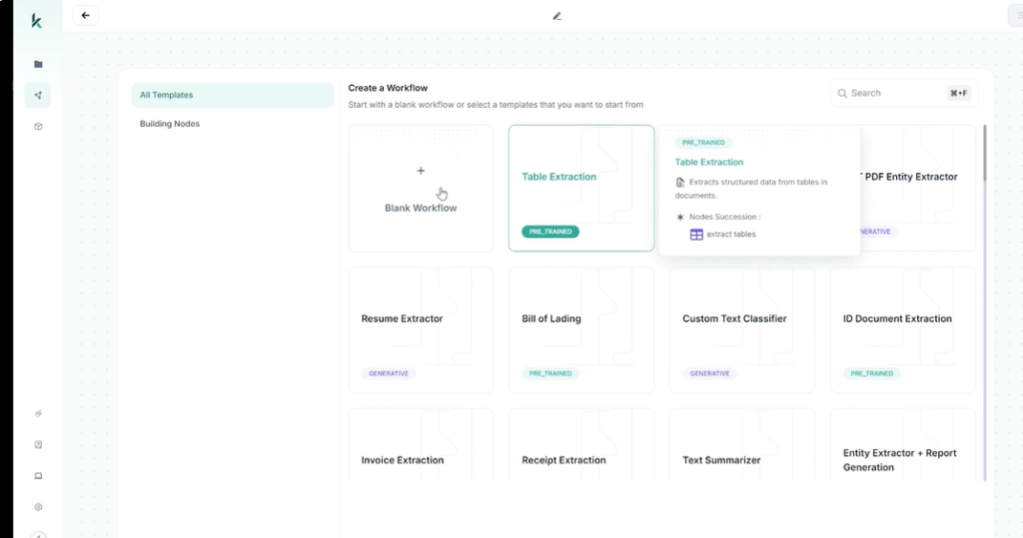
2- Create a new workflow: On the main dashboard, click on “Create Workflow” to start setting up the automation process. You can either start with a blank workflow or choose from an existing template. In this instance, we’ll go with a blank workflow for maximum customization.
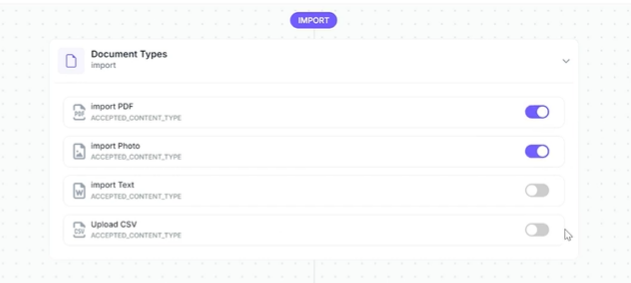
3- Define your import type: In the workflow settings, define the type of document you’re going to import. For bank statement extraction, you’ll likely be working with PDFs or images, so make sure to enable both formats.
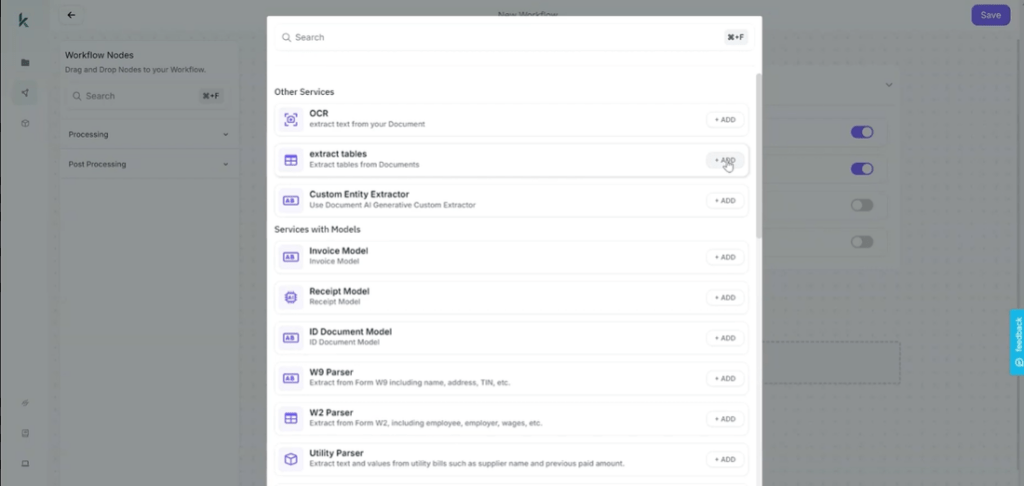
4- Add the Table Extraction Node: Now, you’ll add the Table Extraction node as your first processing step. This node helps parse tables from unstructured documents like bank statements, breaking them down into readable rows and columns.
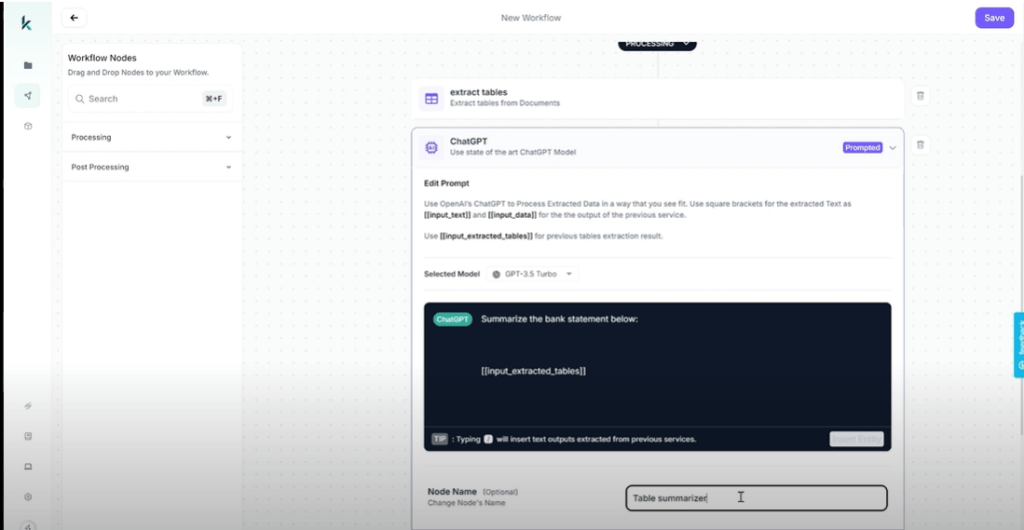
5- Add ChatGPT for Summarization (Optional): If you need a quick summary of the bank statement, you can add a ChatGPT node to generate a summary of the data extracted. While this is an optional step, it can provide additional context or analysis based on the extracted data.
6- Test the workflow: Before proceeding, it’s essential to test the workflow. Upload a sample bank statement, run the workflow, and check the output to ensure the extraction process works correctly.
Configure MAKe for Automation
Make (formerly known as Integromat) is a powerful automation platform that integrates various services to automate workflows. In this case, MAKe will be used to retrieve bank statements from a cloud storage service (like OneDrive), call the Kudra API to process the statement and export the extracted data to Google Sheets.
1- Create a New Scenario in MAKe: Once you’ve logged into MAKe, navigate to the “Scenarios” tab and click “Create New Scenario.”
2- Choose OneDrive as Your Data Source:
- Set up the first module by selecting OneDrive as the service from which you’ll retrieve your bank statements.
- Configure the module to connect to your OneDrive account and select the folder where the bank statements are stored.
3- Add HTTP Module to Call Kudra API:
- Next, add an HTTP module to make a direct call to the Kudra API. You’ll need to specify the Kudra API endpoint URL for processing bank statements.
- Include necessary API keys and authentication details to authenticate your request.
- Configure the API request to send the bank statement file (PDF or image) to Kudra’s servers for processing.
4- Iterator Module for Data Extraction:
- Once the API has processed the statement and returned the extracted data, add an Iterator module in MAKe.
- The Iterator will loop through each cell in the table extracted by Kudra, allowing you to process individual rows and columns of data.
5- Set Variables for Google Sheet Compatibility:
- To ensure the extracted data can be seamlessly integrated into Google Sheets, you’ll need to add a Set Multiple Variables node. This will help adjust the cell indices from Kudra (which start at zero) to be compatible with Google Sheets (which start at one).
6- Export Data to Google Sheets:
- Now that you’ve extracted the data and adjusted the cell indices, add a Google Sheets module to export the data.
- Configure the Google Sheets module by connecting it to your Google account, specifying the target sheet, and defining the row and column positions for each data point.

Step 3: Run and Verify the Automation
Once you’ve configured all the nodes in your workflow, it’s time to test it out.
Run the Scenario: Trigger the scenario in MAKe to initiate the process. OneDrive will pull the bank statement, the Kudra API will extract the data, and the data will be looped and sent to Google Sheets.
Monitor the Process: As the workflow runs, you can monitor the process in real time on MAKe’s dashboard. Look out for any errors or issues with the API call or data extraction.
Verify the Output: Once the process is complete, navigate to your Google Sheet to ensure that the extracted data has been parsed correctly. You should see the bank statement data neatly organized into rows and columns, ready for further analysis.
Benefits of Automating Bank Statement Extraction
By automating the process of extracting data from bank statements, you’ll experience numerous benefits, including:
Time savings: Automation drastically reduces the time required to process bank statements, freeing up time for other important tasks.
Improved accuracy: With no manual data entry, the likelihood of errors is significantly reduced.
Scalability: Whether you’re processing a few statements or hundreds, automation handles any volume efficiently.
Real-time access: With the data immediately exported to Google Sheets, you can view and analyze the financial information as soon as the statement is processed.
Conclusion
Automating the extraction of bank statements is no longer a daunting task, thanks to platforms like Kudra and MAKe. This guide has shown you how to create a streamlined, automated process that takes the hassle out of managing financial data. By following these steps, you can automate the entire process, from data extraction to export, ensuring your financial records are always up-to-date, accurate, and accessible. If you want to dive deeper into the subject, you can check our guide ” Reconciling bank statements in 2024 “


