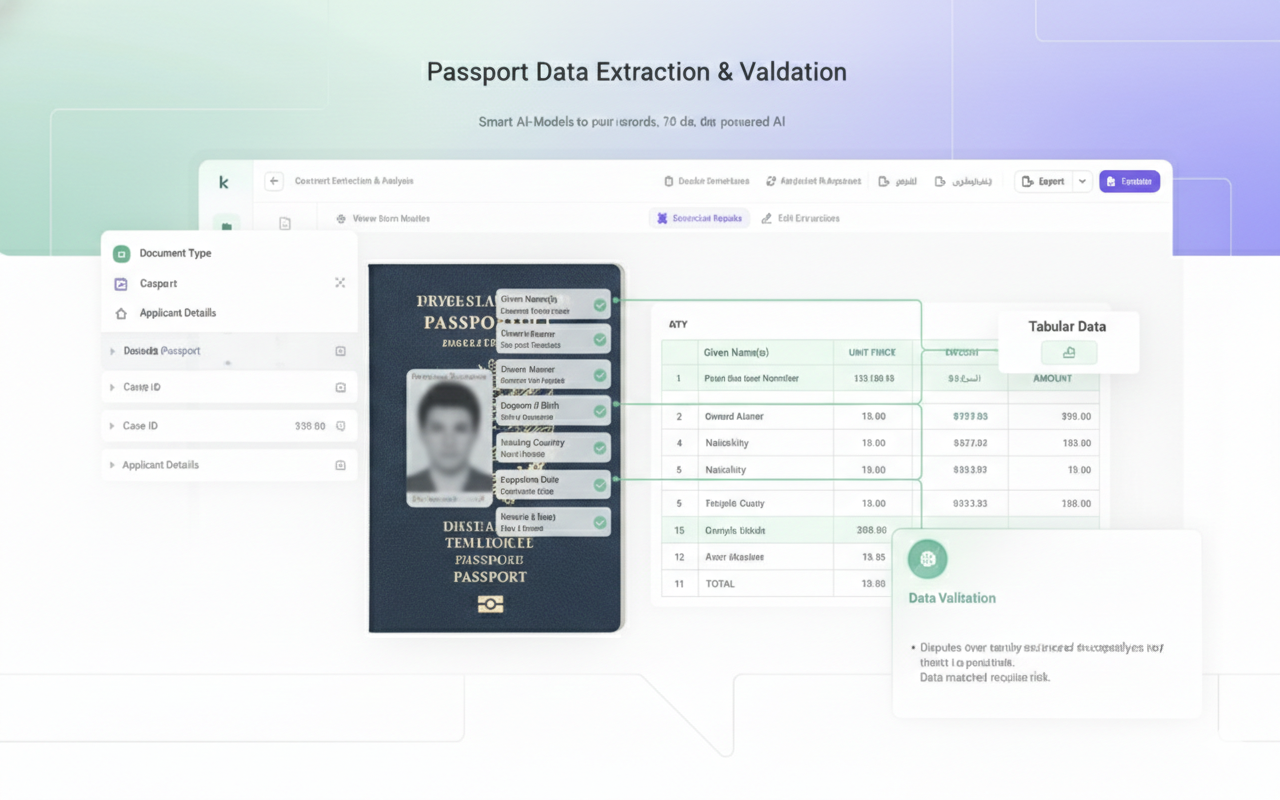
Every immigration office faces the same recurring challenge: passport verification. While passports may seem straightforward, they’re the foundational document that everything else in a visa application must match, and they’re responsible for more case delays than most offices realize.
Before any visa application can be submitted, staff must manually verify passport details against every document in the case file. This means checking names, dates of birth, passport numbers, expiration dates, and nationalities across bank statements, employment letters, tax documents, and application forms. The process is visual, repetitive, and prone to error, especially when teams are processing dozens of cases simultaneously.
A typical visa case contains multiple documents that all need to reference the same identity information. Staff spend hours:
Re-typing passport details into different systems and forms. Zooming into scanned images to read passport numbers correctly. Cross-checking spellings across multiple PDFs to catch inconsistencies. Verifying expiration dates to ensure passports remain valid throughout the application process. Manually comparing every document against the passport to confirm alignment.
The work isn’t complex, it’s simply time-consuming and mentally draining. One small oversight, like a misspelled name or transposed digit, can delay an entire case or trigger resubmission requirements.
Why Traditional Methods Fall Short

Manual passport review creates several persistent problems. First, visual comparison is inherently inconsistent, what one staff member catches, another might miss. Second, re-entering the same information multiple times increases the likelihood of transcription errors. Third, there’s no efficient way to validate documents at scale when your team is handling high volumes.
These challenges compound when dealing with passports from different countries, varying document quality, or handwritten annotations. The result is a bottleneck that slows down the entire visa preparation workflow.
Automating Passport Data Extraction
Modern document intelligence platforms eliminate manual passport processing by automatically extracting and structuring passport data. This transforms the passport from a document that requires constant reference into a digital identity profile that drives the entire case.
Here’s how automated passport processing works in practice:
Upload the passport scan into your workflow system. Automated OCR extracts key fields including full legal name, date of birth, passport number, expiration date, and nationality. The system creates an identity record that serves as the single source of truth for the case. Other documents are validated against this identity profile automatically.
Once passport data is extracted, it becomes the reference point for every subsequent document. Staff can instantly see whether a bank statement, employment letter, or tax document matches the passport without manual comparison.
Building a Passport Automation Workflow with Kudra AI

Kudra AI’s document intelligence platform makes it straightforward to set up passport automation tailored to your immigration office’s specific needs. The platform’s flexibility means you can design workflows that match your exact requirements rather than adapting your process to rigid software limitations.
Let’s walk through building a complete passport processing workflow using a real example.
Step 1: Design Your Workflow
When you first access Kudra’s workflow builder, you’ll be prompted to create a new workflow. You have two options: start from a blank workflow or use a predefined template. For passport processing, we’ll start with a blank workflow to demonstrate the full customization capabilities.

Setting Up OCR Extraction
The first component you’ll drag into your workflow is the OCR module. This is the engine that reads text from your passport scans. Simply drag the OCR component from the component library onto your workflow canvas.
Once placed, you configure the OCR settings. For passports, you want the OCR to extract all visible text from the document—including the machine-readable zone at the bottom of the bio page, handwritten entries, stamps, and any annotations.
Adding Vision Language Model (VLM) Processing
After OCR extracts the raw text, the next step is intelligent field extraction. This is where you add a Vision Language Model (VLM) component to your workflow.
The VLM component is more sophisticated than basic OCR—it understands document structure and context. You configure it to extract specific fields from the passport:
- Full legal name (surname and given names)
- Date of birth
- Passport number
- Nationality
- Issue date
- Expiration date
- Place of birth
- Gender
- Issuing authority
The VLM doesn’t just grab text—it understands that “Date of Birth” might be labeled differently on passports from different countries, or that passport numbers have specific formats depending on nationality. It intelligently identifies and extracts the correct values even when passport layouts vary.
Implementing Automated Validation
Here’s where passport automation becomes truly powerful. You can add a text generation component that automatically detects potential issues with the passport. This component analyzes the extracted data and flags problems before they become case delays.
For example, you can configure validation rules that:
Check expiration dates against today’s date: If a passport expires within the next six months (or whatever threshold you set based on visa processing times), the system flags it immediately. You can customize this threshold based on different visa types—tourist visas might need three months validity, while work permits might require twelve.
Verify passport number formats: Different countries use different passport number formats. Your workflow can validate that the extracted passport number matches the expected format for that nationality.
Detect missing information: If critical fields like date of birth or nationality aren’t extracted, the system alerts staff to review the scan manually.
Identify data inconsistencies: The VLM can spot when information doesn’t make logical sense—like an expiration date that’s before the issue date, or a birth date that would make the passport holder impossibly young or old.
This validation component essentially performs the quality checks that senior staff would normally do manually, but it does them instantly and consistently for every single passport.
Optional Post-Processing
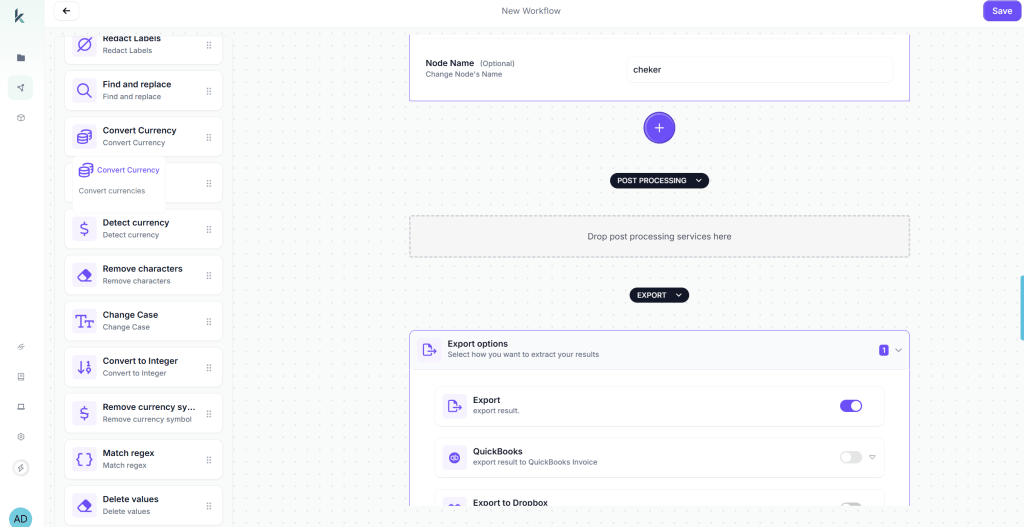
Kudra offers a range of post-processing components that can further refine your extracted data, though for basic passport processing you may not need them.
Available post-processing options include:
Find and Replace: Useful if you need to standardize certain text elements. For example, if some passports show nationality as “USA” and others as “United States,” you can automatically standardize to your preferred format.
Format Date: Passports from different countries use different date formats (DD/MM/YYYY vs MM/DD/YYYY). This component can convert all extracted dates to match your case management system’s required format.
Text Transformation: Convert names to all uppercase, proper case, or other formats that match your documentation standards.
Data Validation: Apply additional regex patterns or validation rules specific to your needs.
For our passport workflow example, we’ll skip post-processing since the VLM already provides clean, structured data that’s ready to use.
Configuring Export Options
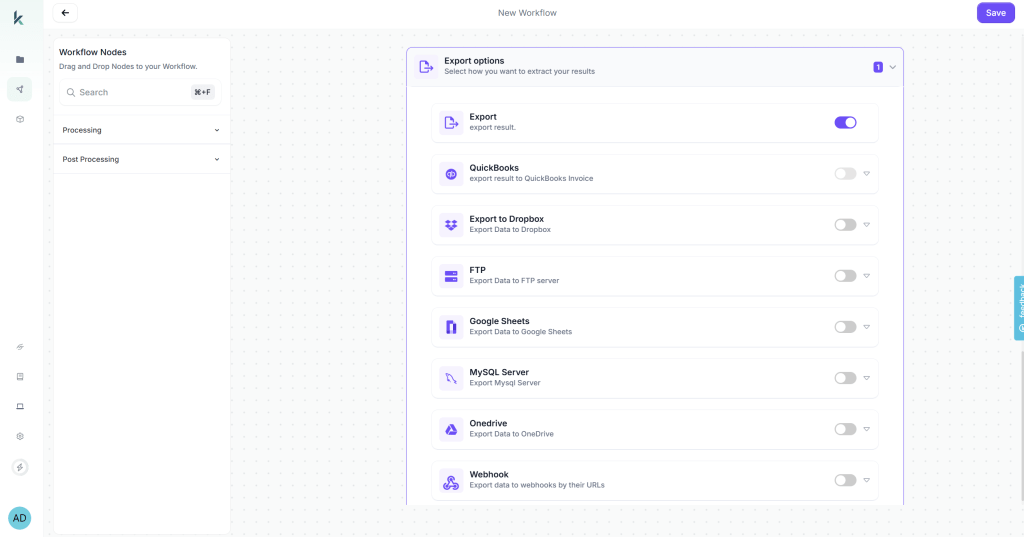
The final step in workflow design is determining what happens to your extracted data. Kudra offers multiple export options that you can enable based on your operational needs:
JSON Export: The default option that saves extracted data in a structured JSON format. This is ideal if you’re integrating with custom case management systems or need maximum flexibility.
Google Drive Integration: Automatically save extracted passport data to a designated Google Drive folder, organized by case number or client name.
QuickBooks Integration: If you track billing or case costs in QuickBooks, passport data can flow directly into your accounting system.
Email Notifications: Send extracted data to specific team members or trigger alerts when certain conditions are met (like expired passports).
Webhook Integration: Push data to external systems in real-time via API webhooks, enabling seamless integration with your existing immigration case management platform.
Database Export: Write extracted data directly to your database tables for immediate access across your organization.
For our example, we’ll enable JSON export and Google Drive integration, ensuring passport data is both stored locally in the project and backed up to cloud storage automatically.
Your complete workflow now looks like this: Passport Upload → OCR Extraction → VLM Field Identification → Validation & Problem Detection → Export to JSON & Google Drive.
Step 2: Create a Project and Link Your Workflow
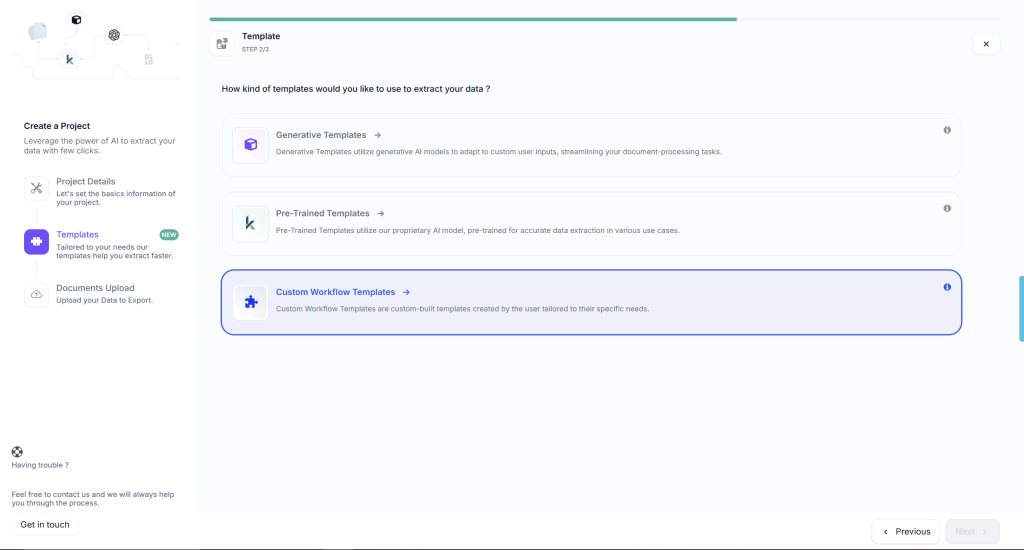
With your workflow designed and configured, the next step is creating a project that will use this workflow for actual passport processing.
Click “Create New Project” in Kudra’s project dashboard. Give your project a descriptive name—for example, “H-1B Work Visa Applications Q1 2026” or “Family Reunification Cases – January Batch.”
During project creation, you’ll select the workflow you just built from a dropdown menu. This links your passport processing workflow to this specific project, meaning every document uploaded to this project will automatically be processed according to the rules you’ve defined.
Projects in Kudra can be organized however makes sense for your practice. You might create separate projects for:
- Different visa categories (tourist, student, work, family)
- Different office locations if you have multiple branches
- Different processing priorities (urgent, standard, complex)
- Different calendar periods (monthly or quarterly batches)
Each project maintains its own document history, extracted data archive, and processing logs. This organizational structure makes it easy to track which cases have been processed, review extraction results from previous applications, and maintain clear audit trails.
Step 3: Upload and Process Passport Documents

Now comes the remarkably simple part—actually processing passports. Navigate to your project and click “Upload Documents.”
You can upload passport scans in several ways:
Single file upload: Drag and drop one passport scan at a time. Ideal when processing individual cases as they arrive.
Batch upload: Select multiple passport files simultaneously. Perfect for immigration offices that receive batches of applications and want to process all passports at once.
Folder upload: Upload an entire folder containing multiple passport scans. Kudra processes each file automatically according to your workflow.
Supported file formats include PDF, JPEG, PNG, and TIFF. The platform handles various image qualities—from high-resolution scans to lower-quality mobile phone photos—applying image enhancement as needed to maximize OCR accuracy.
Once uploaded, Kudra automatically applies your workflow to each passport. You’ll see real-time processing status as each document moves through the workflow stages: OCR Extraction → VLM Analysis → Validation → Export.
The entire process typically takes 10-30 seconds per passport, depending on file size and complexity. While processing runs, you can continue uploading more documents or working on other tasks—Kudra handles everything in the background.
Step 4: Review and Retrieve Structured Results
After processing completes, you can immediately access the extracted passport data. Kudra presents results in several ways:
Individual Document View: Click on any processed passport to see the complete extraction results. You’ll see:
- All extracted fields with their values (name, date of birth, passport number, etc.)
- Confidence scores for each extraction (indicating how certain the AI is about the accuracy)
- Any validation warnings or flags (expired passport, missing data, format issues)
- The original passport image for visual verification if needed
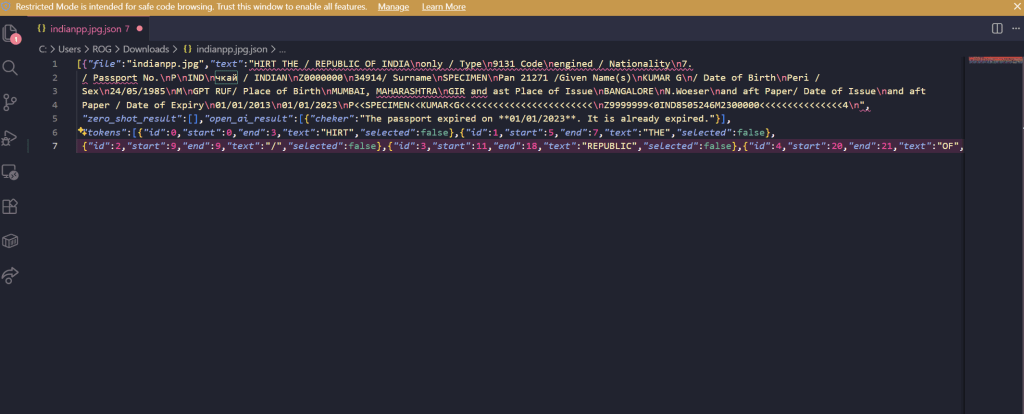
JSON Export: Download the structured JSON file containing all extracted data. This standardized format makes integration with other systems straightforward. A typical JSON output might look like:
What Changes in Daily Operations
Implementing passport automation fundamentally shifts how immigration staff prepare visa cases. The changes are felt across the entire workflow, from initial case intake through final submission.
Instant validation replaces visual comparison. When staff upload supporting documents, the system automatically checks them against the passport identity record. A bank statement with a slightly different name spelling is flagged immediately, not discovered days later during final review.
Expired passports are flagged the moment they’re uploaded to the system. Staff don’t waste time preparing cases for passports that won’t be valid during the processing period. This early detection prevents significant downstream waste.
Spelling inconsistencies are caught before submission, eliminating one of the most common sources of visa application delays. The system identifies when a client’s name appears differently across documents and alerts staff to resolve the discrepancy.
Data entry is eliminated for passport details, as information flows directly from extraction into application forms, case management systems, and verification documents. What used to require typing the same information five or six times now requires zero manual entry.
Case files are built with clean, consistent identity data from the start. Every document in the case references the same passport information, because that information came from the same source—the automated extraction—rather than being manually typed multiple times by different staff members.
The automation doesn’t replace immigration professionals—it removes the most tedious, error-prone part of their workflow so they can focus on substantive legal work, case strategy, and client communication. Staff can spend their expertise on complex eligibility questions rather than transcribing passport numbers.
Beyond Basic Extraction
While basic passport extraction is valuable on its own, the real power comes from building intelligent workflows around that extracted data. Kudra’s platform allows immigration offices to create sophisticated automation that extends well beyond simple OCR.
For example, you can configure workflows that automatically check passport expiration dates against visa processing timelines and flag cases where renewal will be needed. You can set up validation rules that compare extracted passport data against government databases of required formats for different nationalities. You can create quality checks that ensure all required passport pages (bio page, stamps, previous visas) are present before a case progresses to the next stage.
These workflow capabilities transform passport automation from a simple time-saver into a comprehensive quality control system that ensures cases are properly prepared before significant resources are invested in them.
Ready to eliminate passport processing bottlenecks in your immigration practice?
Found This Helpful?
Book a free 30-minute discovery call to discuss how we can implement these solutions for your business. No sales pitch, just practical automation ideas tailored to your needs.
Book A CallContact Kudra AI today to transform manual data extraction into automated intelligence.


