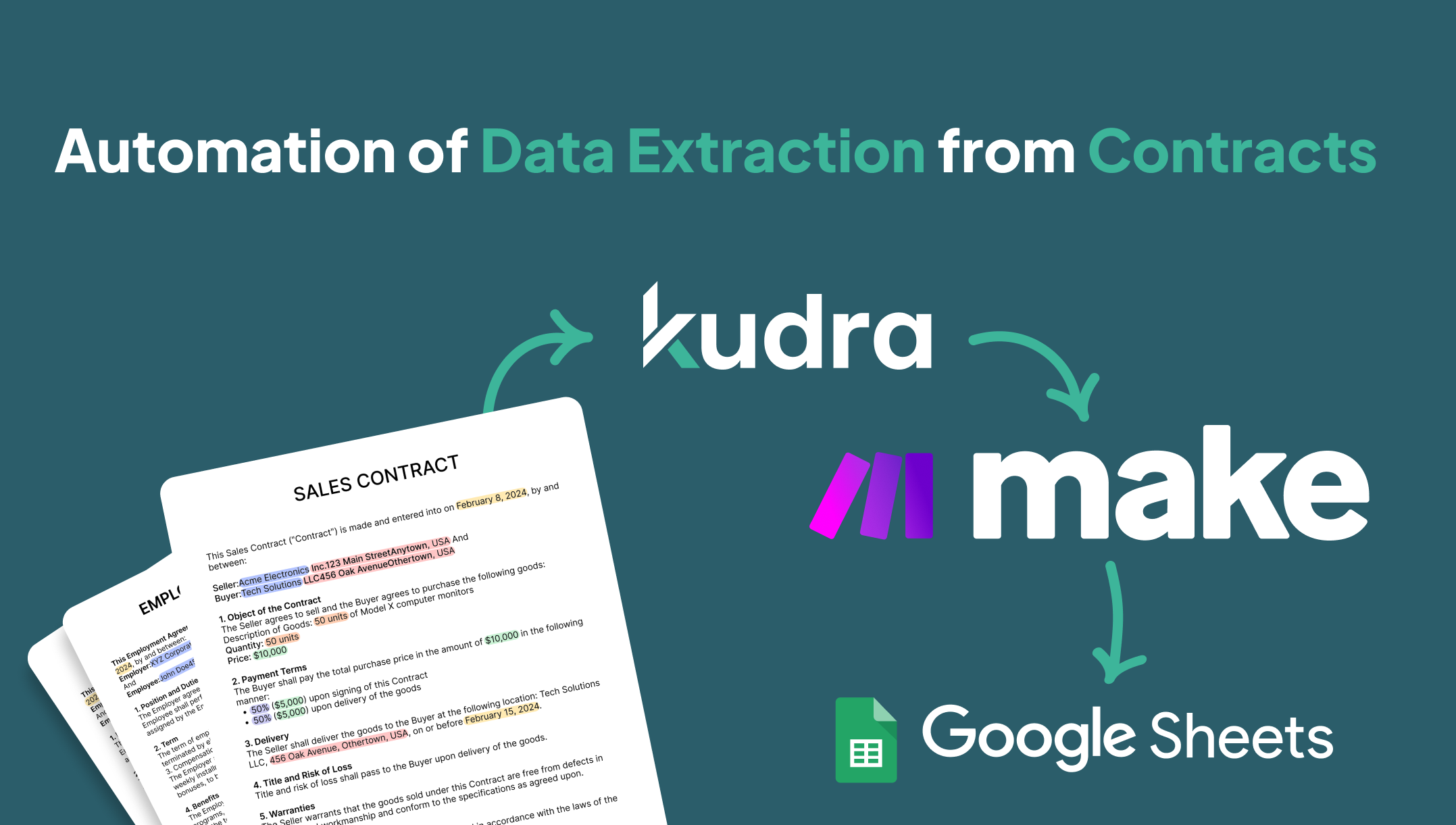
Contracts are vital documents that form the backbone of many business transactions. However, manually sifting through lengthy contracts to extract critical information like names, addresses, and terms is time-consuming, prone to human error, and inefficient. Automation of data extraction from contracts presents an ideal solution to streamline this process.
Manual Data Extraction from Contracts
For businesses handling multiple contracts, reviewing and extracting essential data is a daunting task. Extracting critical details from legal documents, rental agreements, or policies requires both time and precision. These are the typical challenges faced in manual contract review:
Time-intensive manual work: Reviewing long documents line-by-line is inefficient and eats into productive hours.
Increased error risks: Manually extracting data often results in human error, especially when dealing with complex clauses or multiple contracts.
Limited scalability: As the volume of contracts increases, the process becomes difficult to scale, leading to delays and missed details.
To resolve these pain points, automating contract analysis can dramatically improve efficiency and accuracy. In this article, we’ll show you how to use Kudra, an intelligent document processing platform, alongside MAKe, an automation platform, to extract key data from contracts and export them directly to Google Sheets for easy access.
Solution: Automating Data Extraction from Contracts with Kudra and MAKe
The Kudra API can process complex legal documents like contracts, identifying and extracting key data points such as names, addresses, rent amounts, and specific clauses. By integrating Kudra with MAKe, you can automate the entire workflow, enabling seamless data extraction from contracts and export to Google Sheets.
Step-by-Step Guide to Automating Contract Data Extraction
In this detailed guide, we’ll walk you through the process of automating data extraction from contracts using Kudra API and MAKe, showing you how to integrate both platforms and automate the extraction of critical information.
Step 1: Set Up Your Workflow in Kudra

The first step is to create a workflow in Kudra that will enable you to extract relevant information from contracts. Here’s how to do it:
1- Log into the Kudra platform: If you don’t have an account yet, sign up at Kudra’s website and access the dashboard.
2- Create a New Workflow: Click on “Create Workflow” and name it something relevant, such as “Contract Analysis.”

3- Define the Document Import Type:
Choose the types of documents you will be analyzing. For contracts, these are typically Word documents, text files, or CSV files. Make sure to activate the necessary import options, including text and CSV, to cover all file formats.
4- Add the GPT Entity Extractor Node:
The GPT Entity Extractor node is the core of this workflow. This AI-driven node scans the document and identifies specific data points like names, addresses, amounts, and clauses.
Define the labels: You need to provide a list of labels that the AI will look for in the contract.
For instance:
- Name: To extract the name of the lessee or lessor.
- Address: For property or contact addresses.
- Rent Amount: To capture the agreed rent value.
- Clauses: To identify specific terms or conditions, such as termination clauses or renewal options.
5- Test the Entity Extraction:
After setting up the entity extractor, upload a sample contract, and run a test to ensure that Kudra successfully identifies and extracts the data points based on your labels. Verify that the extraction outputs are accurate and relevant.
Step 2: Set Up MAKe for Automation
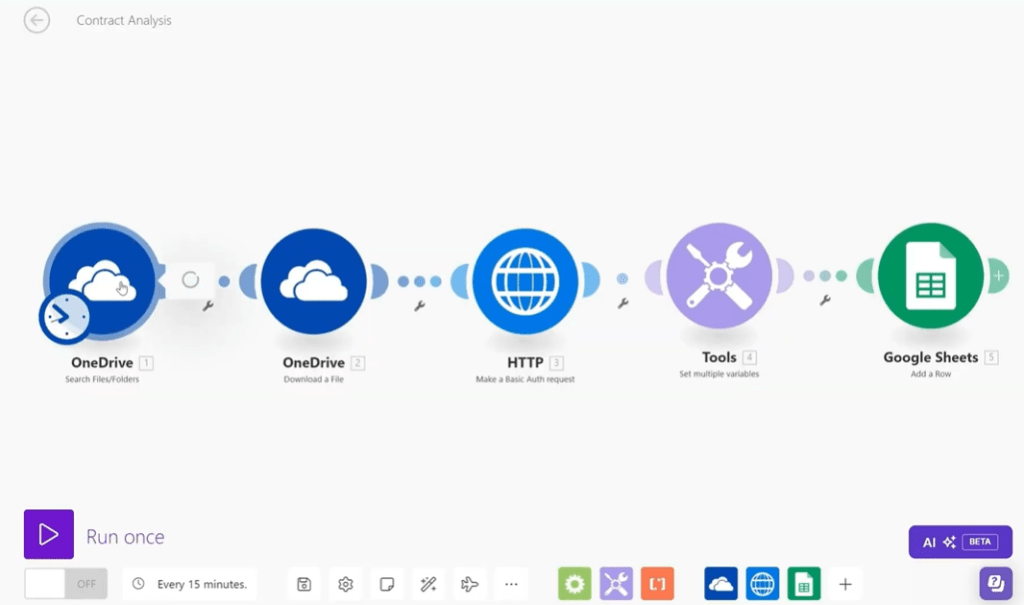
1- Create a New Scenario in MAKe:
Log into MAKe, go to the “Scenarios” section, and click “Create New Scenario” to start building your automation pipeline.
2- Connect to OneDrive for Document Import:
- Add a OneDrive module as the first node. This module will import contracts from a designated folder in OneDrive.
- Set up the connection by providing your OneDrive credentials, and specify the folder that contains the contracts you want to process.
3- Call the Kudra API Using the HTTP Module:
- Next, add an HTTP module to call the Kudra API for document processing. You will need to configure the module to:
- Send a request to the Kudra API’s endpoint for contract analysis.
- Include the document from OneDrive as an input for processing.
- Specify the appropriate API authentication tokens and headers to ensure the request is authenticated.
4- Process the API Response with Set Multiple Variables:
- After Kudra processes the contract, the API will return the extracted data in JSON or another structured format.
- Use the Set Multiple Variables node to map each piece of extracted information (such as names, addresses, rent amounts, etc.) to individual variables. For example:
- Create a variable called name and assign the extracted lessee/lessor name to it.
- Create a variable for address, rent amount, and any other relevant data points.
5- Export Data to Google Sheets:
- Now that the extracted information has been organized into variables, add a Google Sheets module to export the data.
- Configure the module by connecting it to your Google Sheets account. Select the Google Sheet where you want to store the extracted data and define the appropriate columns for each data point (e.g., Name, Address, Rent Amount, Clauses).
- Map the variables from the previous step to their respective columns in the Google Sheet.
Step 3: Run and Test the Workflow
Once you have set up the workflow in Kudra and configured MAKe for automation, it’s time to test the entire process.
Run the Scenario in MAKe:
Trigger the workflow by running the scenario in MAKe. The process will begin with OneDrive retrieving the contract, Kudra extracting the data, and the results being exported to Google Sheets.
Monitor the Process:
As the workflow runs, MAKe’s dashboard will display the progress of each module. Monitor the HTTP requests, data processing, and Google Sheets export to ensure everything works smoothly.
Verify the Output in Google Sheets:
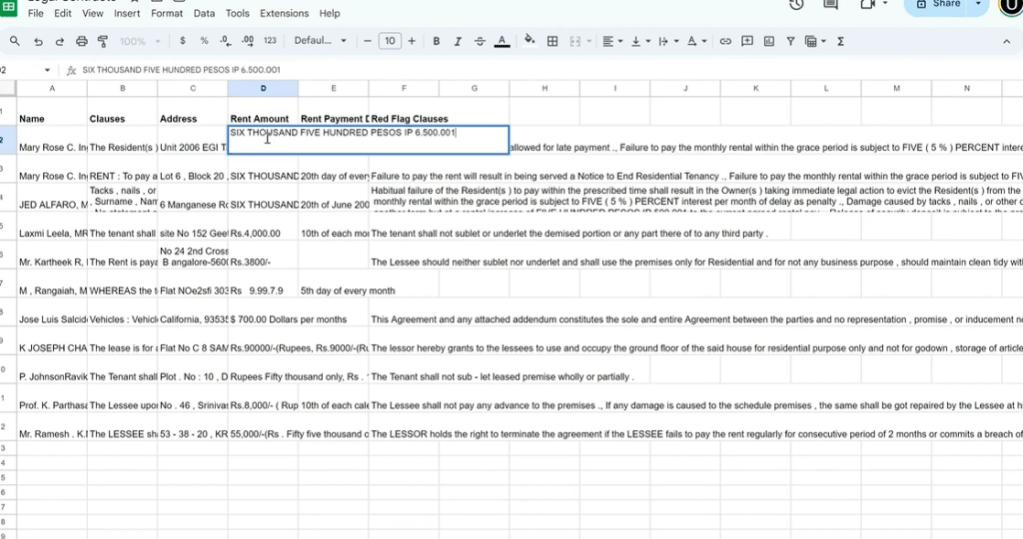
Once the process is complete, open the designated Google Sheet and check the data. You should see the contract data (such as names, addresses, and rent amounts) neatly organized in the corresponding columns.
Benefits of Automating Data Extraction from Contracts
Automating contract analysis using Kudra and MAKe delivers numerous benefits for businesses and legal teams:
Increased Efficiency: Automation significantly reduces the time spent manually reviewing contracts, freeing up resources for more valuable tasks.
Improved Accuracy: AI-driven extraction eliminates human error, ensuring that the extracted data is consistent and reliable.
Scalability: Whether you’re processing a handful of contracts or hundreds, the automated workflow scales effortlessly to handle the workload.
Centralized Data Access: By exporting the data directly to Google Sheets, you create a centralized repository that makes it easy to access, analyze, and share critical contract information.
Conclusion
By following this guide, you can easily automate the process of extracting critical data from contracts using Kudra and MAKe. This streamlined workflow will save you time, reduce human error, and improve the scalability of your contract analysis efforts. Whether you’re a legal professional or a business owner, automating contract data extraction with Kudra’s API and MAKe offers a powerful solution for managing your documents efficiently.


